From someone who struggled with it too
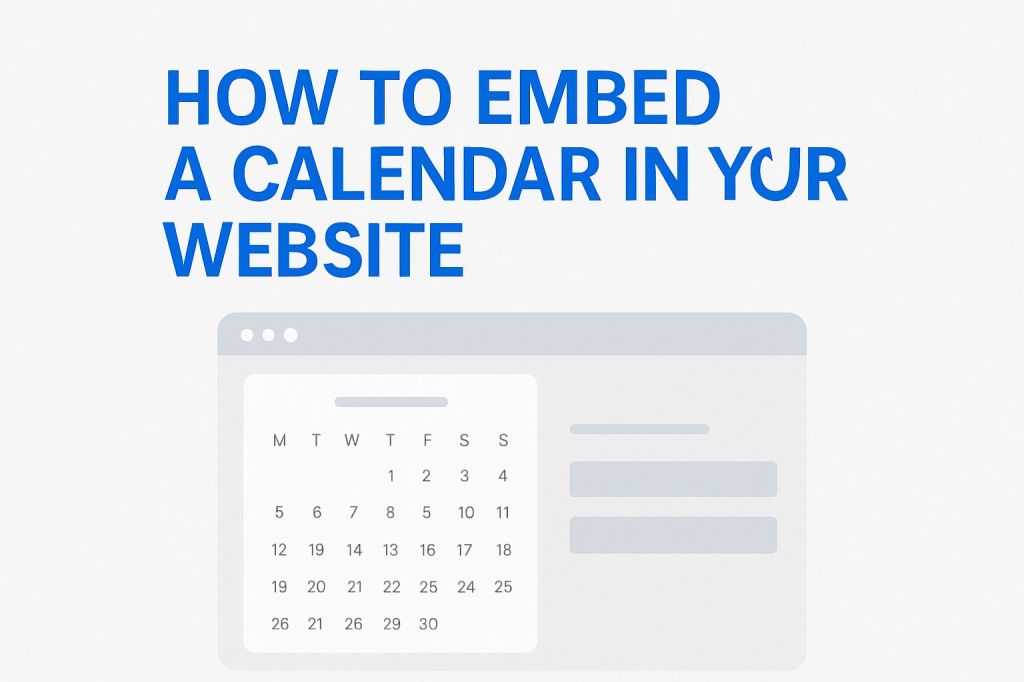
Let me be real with you: when I first tried to add a calendar to my website, I thought it’d be easy. You know, click a thing here, paste a thing there, and done. Nope. I ended up staring at weird code wondering where the heck it even goes.
So if you’re in that same place: don’t worry. I figured it out the hard way, and now I’m going to walk you through it step by step. No techy talk. Just plain old human explanations.
Why Even Add a Calendar?
You might be asking: “Do I actually need one?”
Here’s why it’s a smart move:
- It helps people see your schedule or book you without sending a bunch of emails.
- It makes you look like a pro: organized and trustworthy.
- It saves time. Like: a lot of it.
Whether you’re a coach, a freelancer, a teacher, or someone running events: having a calendar on your site just makes things smoother.
Step 1: Pick a Calendar Tool That Doesn’t Suck
There are a million tools out there claiming they’re “easy” and “all-in-one.” Let me save you time. Here are a few that actually work:
- Google Calendar: Simple and free. Great for showing events.
- Calendly: Lets people book appointments with you. Super easy.
- Acuity: A bit more pro-level. Good if you charge for appointments.
- TidyCal: Clean and affordable.
Google Calendar and Calendly are the most beginner-friendly.
Step 2: Set Up Your Calendar First
Before you embed anything: you need to have something to embed.
For Google Calendar:
- Go to Google Calendar.
- On the left, click the little plus next to “Other calendars” and choose “Create new calendar.”
- Give it a name and save.
- Add your events or times.
For Calendly:
- Sign up at calendly.com.
- Create an event type (like “15-minute call”).
- Set your available days and hours.
- Done.
Step 3: Get the Embed Code
This is the part that used to stress me out. It looks like code, but really: you just copy and paste it.
For Google Calendar:
- In Google Calendar, go to your calendar settings.
- Scroll to “Integrate calendar.”
- Copy the iframe code that looks like this:
<iframe src="https://calendar.google.com/calendar/embed?src=youremail@gmail.com" style="border: 0" width="800" height="600" frameborder="0" scrolling="no"></iframe>
That’s the code that makes your calendar show up on your site.
For Calendly:
- Click “Share” on your Calendly event.
- Pick “Add to Website.”
- Choose “Inline Embed.”
- Copy the code it gives you:
<div class="calendly-inline-widget" data-url="https://calendly.com/yourusername" style="min-width:320px;height:630px;"></div>
<script type="text/javascript" src="https://assets.calendly.com/assets/external/widget.js" async></script>
Step 4: Paste It Into Your Website
For WordPress:
- Go to the page or post where you want the calendar to show up.
- Add a Custom HTML block.
- Paste the embed code and hit update.
For Plain HTML Websites:
Paste the code anywhere in the <body> where you want the calendar to appear. That’s it.
Optional: Make It Mobile-Friendly
If you want the calendar to look good on phones and tablets: here’s a trick that makes it responsive.
<style>
  .calendar-wrapper {
    position: relative;
    padding-bottom: 75%;
    height: 0;
    overflow: hidden;
  }
  .calendar-wrapper iframe {
    position: absolute;
    top: 0;
    left: 0;
    width: 100%;
    height: 100%;
  }
</style>

<div class="calendar-wrapper">
  <iframe src="https://calendar.google.com/calendar/embed?src=youremail@gmail.com" frameborder="0"></iframe>
</div>
It’s not required, but it helps your site look clean on mobile.
Final Thoughts: Just Get It Done
Don’t let the “code” part scare you. Here’s the recap:
- Pick a calendar tool.
- Set up your events or availability.
- Copy the embed code.
- Paste it into your site.
That’s it. If it doesn’t work the first time: double-check the code or try again. Worst case, switch to another tool. There’s always a way.
And hey: if you’re stuck, feel free to ask me. I’ve broken things enough times to know how to fix them now 😅
 Drop Funnel
Leave a comment