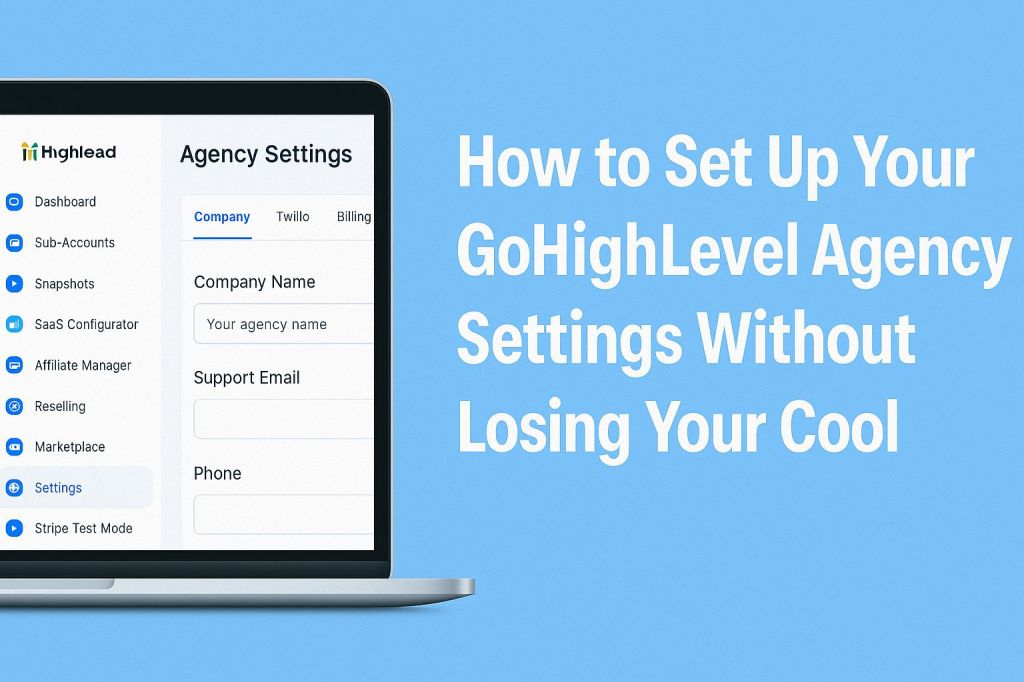
So, you’ve got a GoHighLevel agency account, and you’re ready to make it the nerve center of your marketing empire. Agency Settings are like the control panel of your spaceship—get them right, and you’re soaring; mess them up, and you’re stuck in orbit. I set this up for my buddy Mike’s marketing gig, and we had a few hiccups—like when I skipped branding and his clients saw “LeadConnector” everywhere, which looked sketchy. This guide’s my battle-tested roadmap for getting your Agency Settings locked in, straight from late-night troubleshooting sessions and some clutch tips from GHL’s docs. Grab a coffee (or a beer—it’s 12:19 AM somewhere), and let’s make this happen.
What You’ll Need
- A GoHighLevel agency account. You need full admin access—none of that “user” nonsense.
- Your business details (name, logo, address, etc.) for branding.
- A custom domain if you want to white-label (optional but pro-level).
- SMTP credentials if you’re sending emails (like from SendGrid or your email provider).
- A browser and decent Wi-Fi. I tried this on a flaky hotspot once—never again.
Step 1: Get Into the Agency Dashboard
Log into GHL and make sure you’re in Agency View—check the top-left corner; it should say “Agency.” If it says a sub-account name, click the dropdown and switch to Agency. Only agency admins can mess with these settings, so if you’re locked out, go to Settings > My Staff > Team Management and beg for admin rights. I got burned once when Mike’s junior account left me clicking around like a lost tourist.
Head to Settings in the bottom-left sidebar. You’ll see a bunch of options—Agency Settings is your main jam here. It’s split into tabs like Business Profile, Integrations, Domains, and more. We’ll hit the key ones to get you rolling.
Step 2: Nail Your Business Profile
Start with Business Profile (sometimes called “Agency Profile”). This is where you tell GHL who you are and make your account look legit. Click it, and fill in:
- Business Name: Your agency’s name, like “Mike’s Marketing Mojo.” This shows up on emails and client portals.
- Logo: Upload a high-res logo (PNG or JPEG, ideally 200×200 pixels). Mike skipped this, and his clients got LeadConnector’s default logo—looked like he was running a knockoff operation.
- Address and Phone: Add your business address and contact number. This is crucial for invoices and client trust.
- Email and Website: Pop in your main email and website URL. These show up in client-facing stuff like funnels.
Save everything. I forgot to hit “Save” once and had to redo it—felt like a rookie. Double-check that your logo looks crisp in the preview.
Step 3: White-Label Like a Pro
If you want to make GHL feel like your platform (not LeadConnector’s), head to Domains or White Label in Agency Settings. This is where you set up a custom domain to replace “app.gohighlevel.com” with something like “app.youragency.com.” It’s a game-changer for looking professional.
- Get a Domain: Buy one from GoDaddy, Namecheap, or wherever (e.g., “youragency.com”). I got one for Mike for $12 a year—cheap flex.
- Add a CNAME Record: In your domain provider’s DNS settings, add a CNAME record pointing to GHL’s servers (usually “app.gohighlevel.com”). Your GHL dashboard will give you the exact CNAME details. This took me 20 minutes the first time because DNS stuff is like herding cats.
- Verify in GHL: Back in Agency Settings > Domains, add your domain (e.g., “app.youragency.com”) and click “Verify.” It might take a few hours for DNS to propagate, so don’t panic if it doesn’t work instantly.
- Set as Primary: Once verified, set it as your primary domain. This makes your funnels, emails, and client portals scream “you” instead of “GHL.”
If you’re not ready for a custom domain, skip this for now—it’s optional but makes you look like a big deal.
Step 4: Set Up Email Sending (SMTP)
If you’re sending emails through GHL (like campaigns or automations), you need a custom SMTP to avoid the spam folder. I learned this the hard way when Mike’s welcome emails landed in clients’ junk mail. Go to Agency Settings > Email Services or Integrations.
- Choose an SMTP Provider: I use SendGrid, but Mailgun or your email host (like Gmail or Zoho) works too. Sign up, grab your SMTP credentials (host, port, username, password).
- Plug Them In: In GHL, click “Add Email Service” or “SMTP Integration.” Enter your SMTP details. For SendGrid, it’s usually:
- Host: smtp.sendgrid.net
- Port: 587
- Username: apikey
- Password: Your SendGrid API key
- Test It: Send a test email from GHL’s Email Builder. If it lands in your inbox (not spam), you’re golden. If not, check your credentials or contact your SMTP provider. I had to tweak Mike’s SendGrid key twice because I copied it wrong.
You can also set up a custom “From” email (like “hello@youragency.com”) in Email Auth to make emails look branded. Verify the domain with a TXT record—GHL’s dashboard walks you through it.
Step 5: Connect Payment Gateways
To take payments (for you or your clients), connect Stripe or PayPal in Agency Settings > Payments or Integrations. I covered this in detail in my last guide, but here’s the quick version:
- Stripe: Go to Payments > Integrations, click “Connect” for Stripe, log into your Stripe account, and authorize. Check for green checkmarks for Live and Test modes.
- PayPal: Same deal, but you’ll need your PayPal Business account’s Client ID and Secret Key from developer.paypal.com. Paste them in and save.
Test with a $1 transaction to make sure it’s working. I skipped testing once, and Mike’s first client payment failed—embarrassing.
Step 6: Configure SaaS Mode (Optional)
If you’re reselling GHL as a SaaS (like selling it to clients as your own software), go to SaaS Configurator in Agency Settings. This lets you charge clients for GHL features like funnels or CRM.
- Enable SaaS Mode and set up pricing plans (e.g., $99/month for basic CRM).
- Connect Stripe (not PayPal—it’s not supported for SaaS billing).
- Customize the client dashboard with your branding.
Mike used this to sell GHL to local businesses, and it added a nice revenue stream. It’s optional, so skip it if you’re just using GHL for your own biz.
Step 7: Tweak Other Settings
A few other Agency Settings are worth checking:
- Twilio for SMS: In Integrations, add your Twilio SID, Token, and Phone Number for texting campaigns. Test with a quick SMS to your phone.
- Affiliate Program: If you’re running an affiliate program, go to Affiliate Manager > Settings and set commission rates. Connect PayPal for payouts.
- Team Management: Add team members and set permissions (admin, user, etc.). I gave Mike’s assistant too much access once, and she accidentally deleted a funnel—oops.
- Whitelabel Emails: Customize email templates in Email Builder to match your brand. Add your logo and colors so clients don’t see GHL’s defaults.
Step 8: Test Everything
Before you go live, test like your business depends on it. Create a dummy sub-account, send a test email, process a $1 payment, and check your branded domain. Mike’s first funnel looked unprofessional because we didn’t test the white-label domain—clients saw “gohighlevel.com” and got confused. Run through every feature you plan to use, and check client-facing stuff like funnels and emails for branding.
Watch Out for These Traps
- No Admin Access: If you can’t see Agency Settings, you’re not an admin. Fix it in Team Management.
- DNS Delays: Custom domains can take 24-48 hours to propagate. Don’t freak out if it’s not instant.
- Email Spam: Without a custom SMTP, your emails might hit spam. Test early and often.
- Branding Oversights: If you skip the logo or custom domain, clients might see “LeadConnector” everywhere, which screams “third-party tool.”
Tips I Wish I Knew
- Start Small: Set up one sub-account to test your settings before rolling out to all clients.
- Backup Your Work: Screenshot your settings or keep notes. I lost an hour redoing SMTP configs once.
- Brand Everything: Clients notice unbranded emails or domains—it’s like serving coffee in a Styrofoam cup.
- Check Support: GHL’s Support Portal (support.gohighlevel.com) and YouTube channel have killer tutorials if you get stuck.
Setting up your GHL Agency Settings is like tuning a hot rod—takes some elbow grease, but once it’s purring, you’re ready to race. Now go build some funnels and make those clients happy!
 Drop Funnel
Leave a comment